
How to Set Up Your Internet TV Subscription on Any Device (Step-by-Step Guide)
Whether you're a complete beginner or switching to a new device, this comprehensive guide walks you through setting up Internet TV on Smart TVs, streaming devices, Android, iOS, PC, Mac, Apple TV, and more. Follow along and start streaming 97K+ channels in minutes.

Table of Contents
So, you've just subscribed to an Internet TV service and you're ready to cut the cord on traditional cable TV - congratulations!
You're about to unlock a world of entertainment with thousands of live channels, movies, series, and sports events, all streamed directly over the internet.
But before you can enjoy all that content, you need to set it up on your device. Don't worry - whether you're tech-savvy or a complete beginner, this guide covers everything you need to know. We'll walk you through the setup process for every major platform, step by step.
What is Internet TV and How Does It Work?
Internet TV stands for Internet Protocol Television. Instead of receiving TV signals through traditional satellite dishes or cable connections, Internet TV delivers television content over your internet connection.
When you tune into a channel, your Internet TV provider streams that content directly to your device in real-time. This means you can watch live TV, on-demand movies, catch-up TV, and more - all through a simple app on your Smart TV, phone, tablet, streaming stick, or computer.
The key advantage? You're not limited to what your local cable provider offers. With a service like 8 DOLLAR STREAMS, you get access to 97K+ channels and VOD content in FHD/4K, including premium sports packages, Premium VOD content and more - all in one subscription.
Why Choose Internet TV?
Cost-Effective
Save up to 80% compared to traditional cable packages. Plans start from just $14.99/month.
Massive Variety
97K+ live channels, 120,000 movies & series from every genre and country.
Watch Anywhere
Stream on any device - TV, phone, tablet, PC, or streaming stick. At home or on the go.
What You'll Need Before You Start
Before diving into the setup, make sure you have these four things ready:
1. An Active Internet TV Subscription
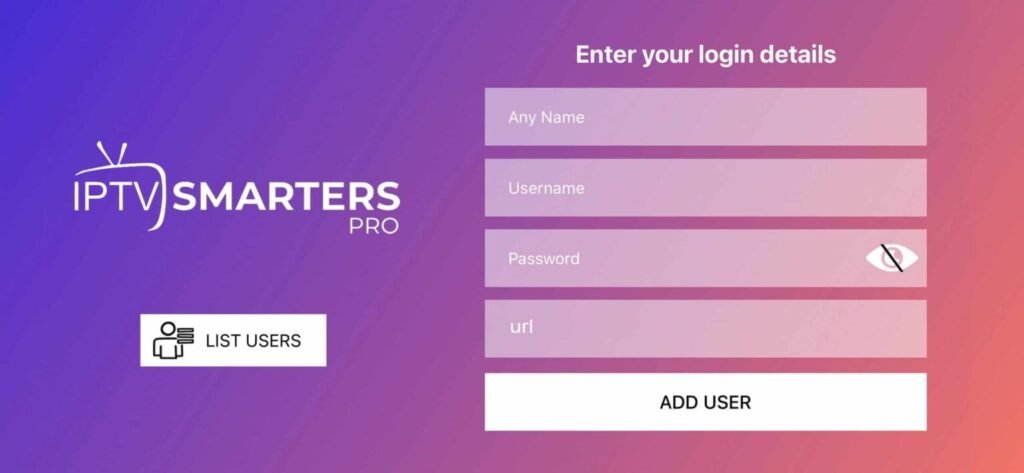
You'll need login credentials from your Internet TV provider. This typically includes either an M3U URL (a direct link to your channel playlist) or Xtream Codes API credentials (Server URL, Username, and Password). Your provider should send these via email or WhatsApp after purchase.
2. A Compatible Device
Any Smart TV, streaming devices, Android phone or tablet, iPhone/iPad, Windows PC, Mac, Apple TV, or other streaming devices. We'll cover them all below.
3. A Stable Internet Connection
For standard definition (SD), you need at least 5 Mbps. For HD, aim for 10-15 Mbps. For 4K streaming, we recommend 25+ Mbps. A wired Ethernet connection is always preferred over WiFi for the most stable experience.
4. An Internet TV Player App
You'll need an app to play the Internet TV streams. Popular choices include Internet TV player apps, premium TV players, TV player apps, media player apps, and TV player apps. We'll recommend the best app for each device below.
General Steps to Set Up Your Internet TV
Regardless of which device you use, the setup process follows the same basic pattern:
Understanding Your Internet TV Provider's Details
Your Internet TV provider will give you one of these connection methods:
- M3U Playlist URL - A direct link (usually starting with http://) that contains your full channel list and EPG (Electronic Program Guide). Simply paste this URL into your IPTV app.
- Xtream Codes API - Three separate fields: Server URL, Username, and Password. Most modern Internet TV apps support this format and it's generally considered more reliable and feature-rich than M3U.
- MAG Portal URL - Used specifically for MAG set-top boxes. Your provider will give you a portal URL to enter in your device's settings.
Choosing the Right Internet TV Player App
When selecting an app, consider these factors:
- Device compatibility - Not all apps are available on every platform
- Features - EPG support, VOD library, catch-up TV, multi-screen
- User interface - Clean, intuitive navigation matters for daily use
- Cost - Some apps are free, others are one-time purchase or subscription-based
How to Set Up Internet TV on Smart TVs
Smart TVs of all major brands (Android TV OS, etc.)
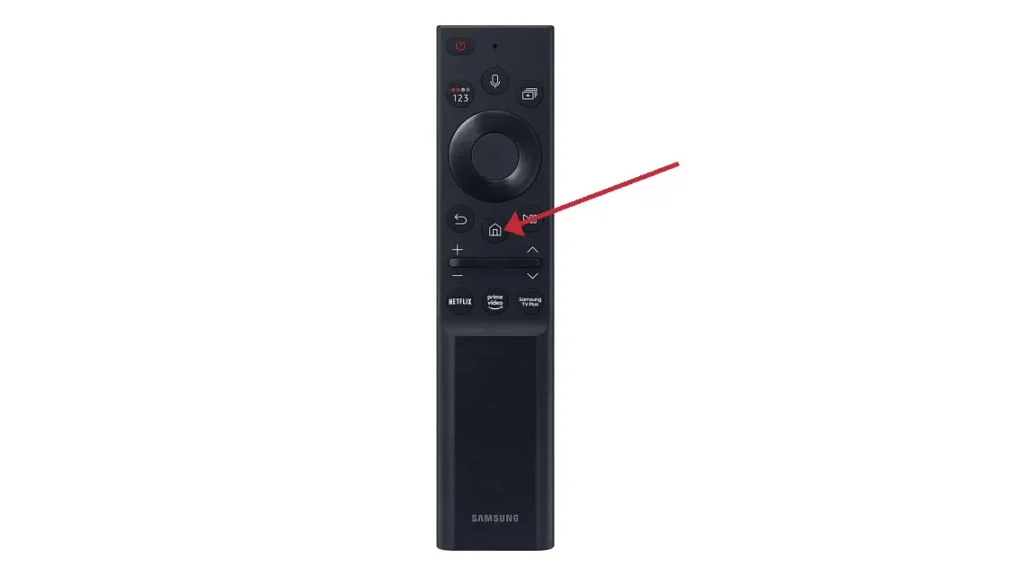
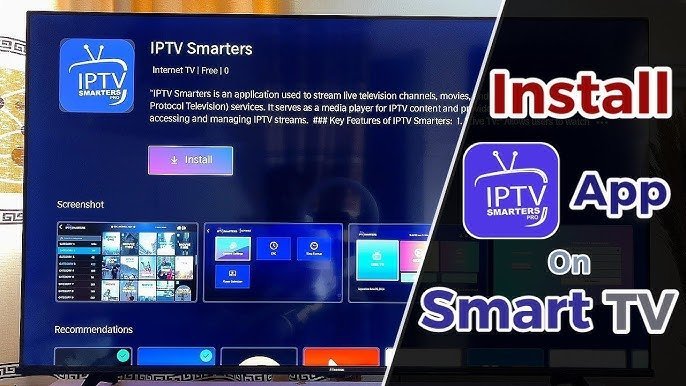
Most Smart TVs support Internet TV apps directly from their app store. The most popular apps for Smart TVs are various Internet TV player apps available on your TV's app store.
Using an Internet TV player app:
How to Set Up Internet TV on Android Devices
Phones, Tablets, Android TV Boxes
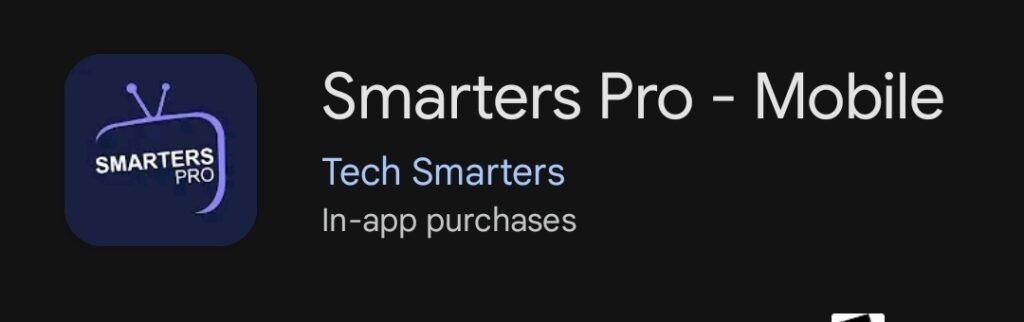
Using an Internet TV Player App (Recommended):
Other Great Android Apps:
- Premium TV players - Premium feel, excellent EPG, perfect for Android TV boxes
- • Media player apps - Free, supports M3U playlists, no frills
- • IPTV player apps - Lightweight, customizable interface
How to Set Up Internet TV on iOS Devices
iPhones and iPads
Using an IPTV Player App (Recommended):
Other iOS Apps:
- • IPTV player apps - Also available on iOS with the same interface as Android
- • Media player apps - Free, reliable M3U player
- • IPTV player apps - Clean iOS-native design
How to Set Up Internet TV on Streaming Devices
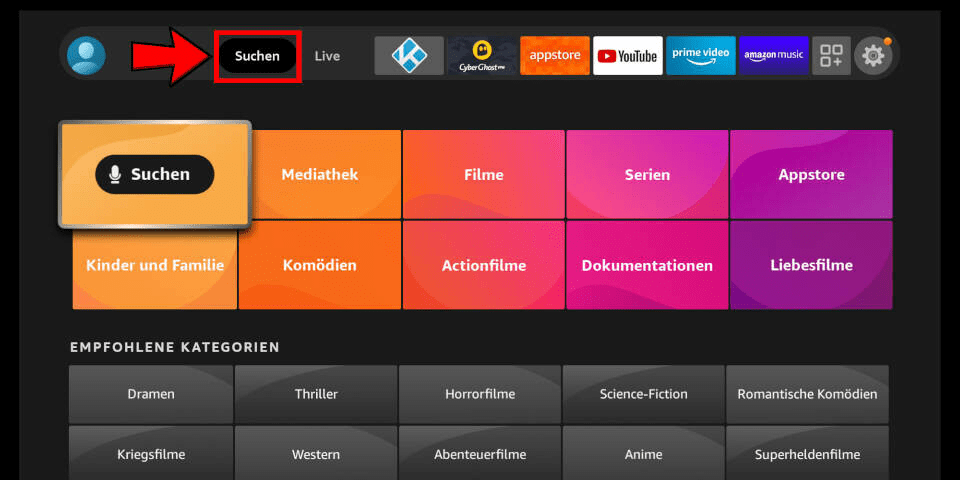
The most popular streaming device for IPTV
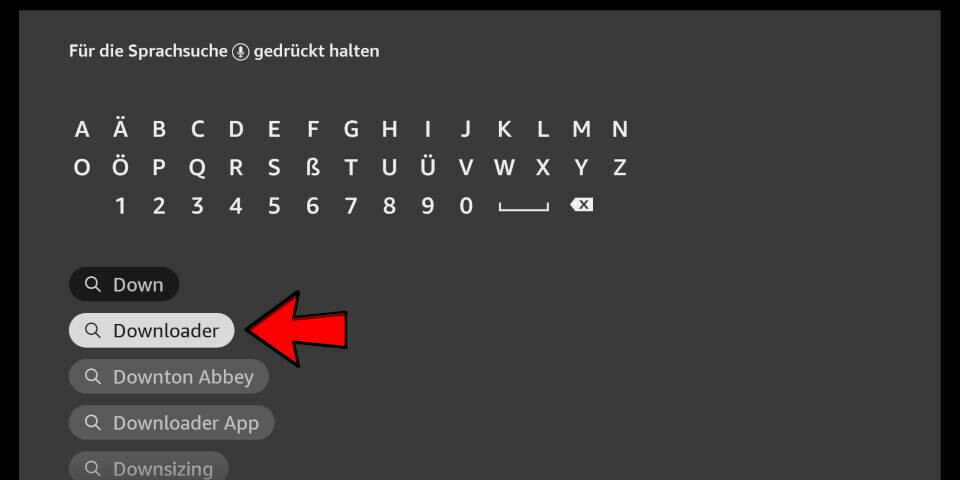
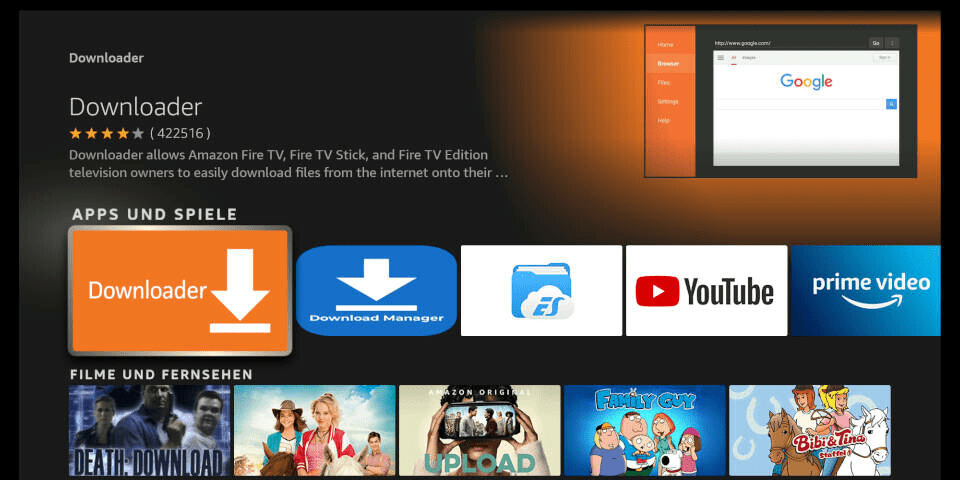
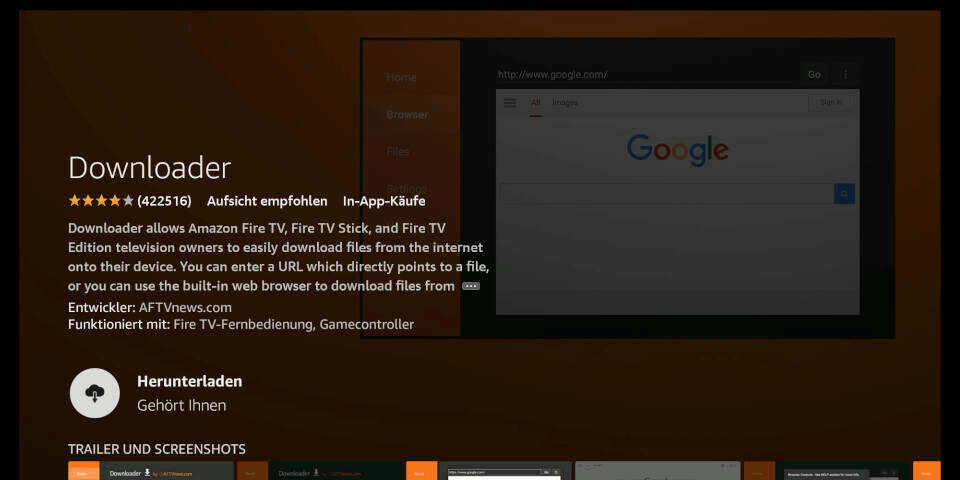
Some Internet TV player apps aren't available in all app stores, so you may need to sideload them using the Downloader app. Don't worry - it's simple and takes just a few minutes.
Sideloading an IPTV Player App:
Other Streaming Device Apps (sideloaded):
- • Premium IPTV players - Premium UI, great for 4K streaming devices
- • Media player apps - Available directly in the app store
How to Set Up IPTV on Windows PC / Mac
Desktop and laptop computers
Method 1: Using a Media Player App (Quick & Free)
Method 2: Using an IPTV Player Desktop Client
How to Set Up IPTV on Apple TV
Apple TV 4K and Apple TV HD
Apple TV has more limited IPTV app options compared to Android, but there are still several solid choices:
Option 1: Using IPTV Player Apps (from the App Store)
Option 2: AirPlay from iPhone/iPad
If you can't find a suitable app, set up IPTV on your iPhone or iPad first (using an IPTV player app), then use AirPlay to mirror or cast the content to your Apple TV. Just tap the AirPlay icon in the app and select your Apple TV. * Or contact us for IBO Player Pro app.
How to Set Up IPTV on Other Streaming Devices
Limited direct options, but still possible
Some streaming devices have a closed ecosystem that makes them challenging for IPTV. There's no direct way to sideload apps. However, you have a few workarounds:
- Screen Mirroring - Mirror your Android phone, Windows PC, or iPhone (via AirPlay on supported models) to your streaming device while running an IPTV app on the source device.
- M3U Playlist Player channels - Some streaming devices support custom M3U playlists through their channel store. Search for "M3U Playlist" in the device's app store.
- Plex + local media - An indirect method using Plex to serve IPTV content, though this requires more technical setup.
Common Issues and Troubleshooting
Buffering or Lagging
- Check your internet speed at speedtest.net - ensure at least 15 Mbps for HD
- Switch to a wired Ethernet connection if using WiFi
- Try a different server if your provider offers multiple options
- Clear the cache in your IPTV app and restart your device
- Restart your router - this often fixes intermittent buffering
Channels Not Loading / Black Screen
- Double-check your M3U URL or Xtream Codes credentials for typos
- Contact your IPTV provider to confirm your subscription is active
- Restart the app and re-enter your credentials from scratch
- Try a different IPTV player app to rule out app-specific issues
App Crashing or Freezing
- Uninstall and reinstall the IPTV app
- Update your device firmware and the app to the latest version
- Make sure your device has enough storage space and available RAM
- Close background apps that may be consuming resources
Geo-restrictions & VPN Use
Some ISPs may throttle or block Internet TV traffic. If you're experiencing issues, a VPN can help by encrypting your connection and masking your traffic type.
- Choose a VPN with fast servers and no-log policy
- Connect to a server closest to you for best speed
- Note: With 8 DOLLAR STREAMS, secure streaming is built in - no VPN required for most users
Tips for the Best IPTV Experience
Use a Wired Connection
Ethernet is always more stable than WiFi.
If you must use WiFi, stay close to your router and use 5GHz band.
Keep Everything Updated
Regularly update your IPTV app, device firmware, and router software for best performance and security.
Explore App Features
Most IPTV apps offer EPG (TV guide), catch-up TV, favorites, parental controls, and multi-screen. Take time to explore.
Organize Your Channels
Create favorites lists and organize channels by category (sports, news, movies) for faster access to what you love.
Consider a Dedicated Streaming Device
For the best experience, use a dedicated streaming device or a quality Android TV box.
Don't Hesitate to Ask for Help
8 DOLLAR STREAMS offers 24/7 WhatsApp support. If you're stuck at any step, reach out and our team will guide you through it.
You're All Set!
Setting up Internet TV doesn't have to be complicated. Whether you're using a Smart TV, streaming device, Android phone, iPhone, PC, Mac, or Apple TV - the process follows the same simple pattern: install an app, enter your credentials, and start watching.
With 8 DOLLAR STREAMS, you get access to 97K+ channels, 120,000 movies and series, premium sports packages, Premium VOD content, and daily playlist updates - all with secure streaming and 24/7 WhatsApp support to help you every step of the way.